Adding a Gallery or Slideshow
- Open a post or page for editing. If it is a new post or page, make sure to add a title and save it at least once before trying to insert a gallery or slideshow.

- Click the Add Media button.
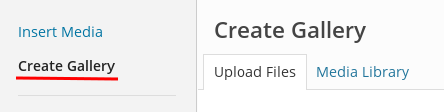
- Click Create Gallery at the top left.
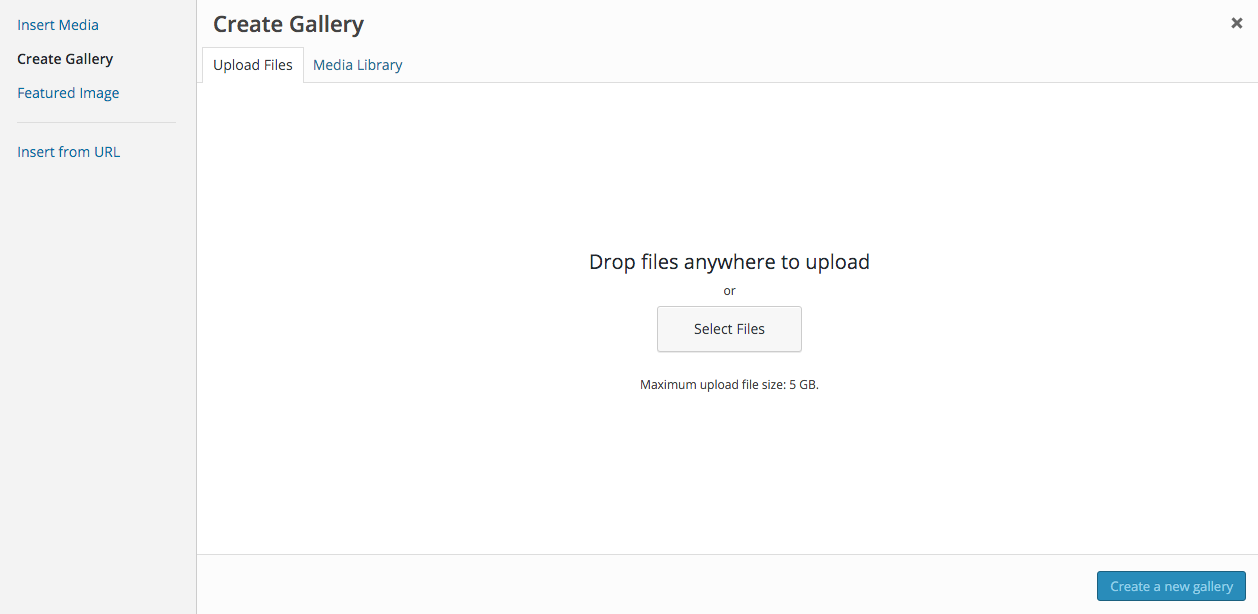
- To add images from your hard drive, drag and drop your files into the box that appears, or click Select Files to choose a picture from your computer to upload.
- After the images have finished uploading, you will be shown all the images in your Media Library. Select any additional images you’d like to include in your gallery or slideshow by clicking on them.
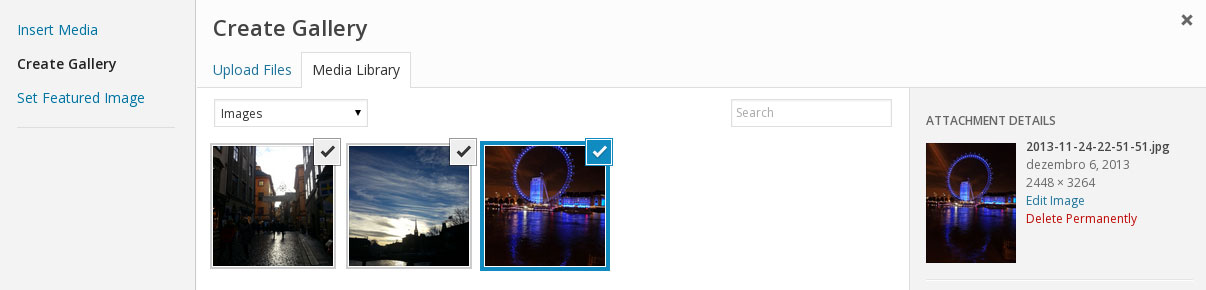
To select multiple images, command-click (Mac) or control-click (PC) the ones you want to use. - Click Create a new gallery at the bottom right.

- On the following screen, click on each image to edit its title, caption, alternate text, and description. (Only the caption will be displayed for the slideshow gallery type.) You can also click and drag photos to re-order them as you like, or choose the Reverse Order or Random Order options:
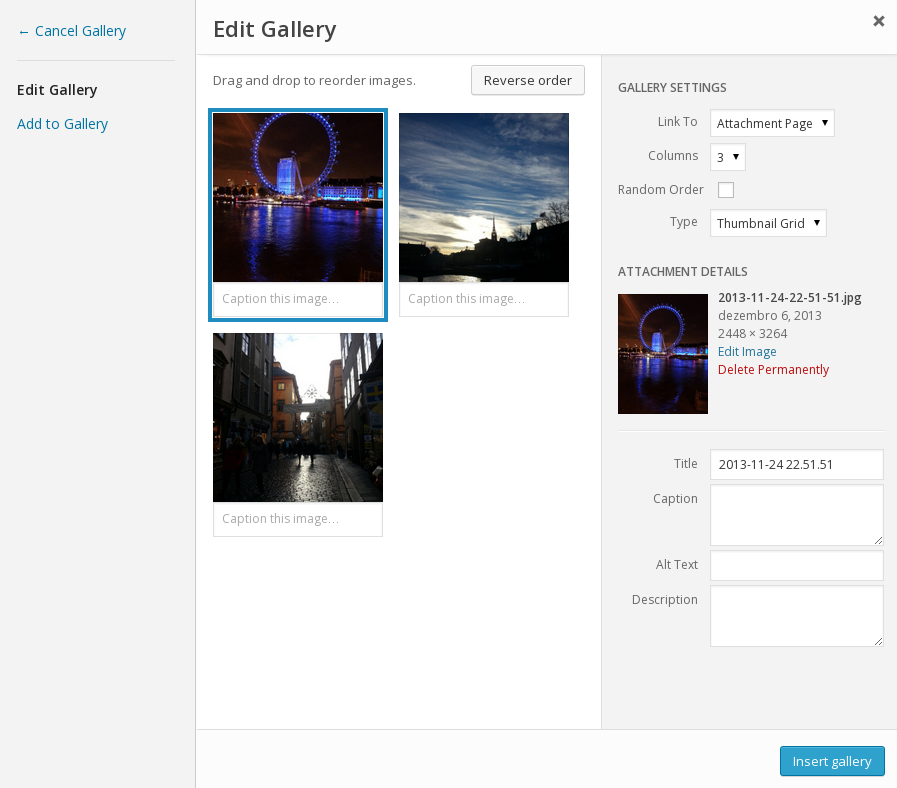
- Choose how you want the gallery to be displayed in the Gallery Settings area:
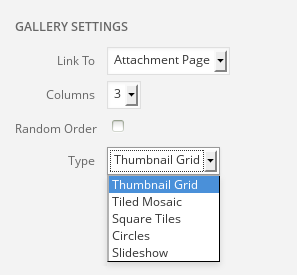
- Link to: Does not apply to slideshows.
- Attachment Page: A specialized page in your blog that shows the image in your selected theme.
- Media File: A direct link to the full-size uploaded image.
- Columns: The number of columns of thumbnails to display. This may be affected by your choice of theme, so be sure and test a bit with your current theme. This option does not apply to slideshows.
- Random Order: Check this box to randomize the order of images in your gallery or slideshow. That means the order will change randomly every time the page is loaded.
- Type: Specify the type of gallery here. The options are a default gallery of thumbnail images, a gallery with rectangular tiles, a gallery with square tiles, a gallery with circular tiles, or a slideshow.
- Link to: Does not apply to slideshows.
- When you’ve finished editing your gallery, click Insert gallery.