Uploading Documents
You can upload documents, like PDFs, to your page or post for users to download.
- Go to Posts → Add New or Pages → Add New.
- Choose where in your text you’d like the link appear and click on the Add Media icon found directly above your editor.

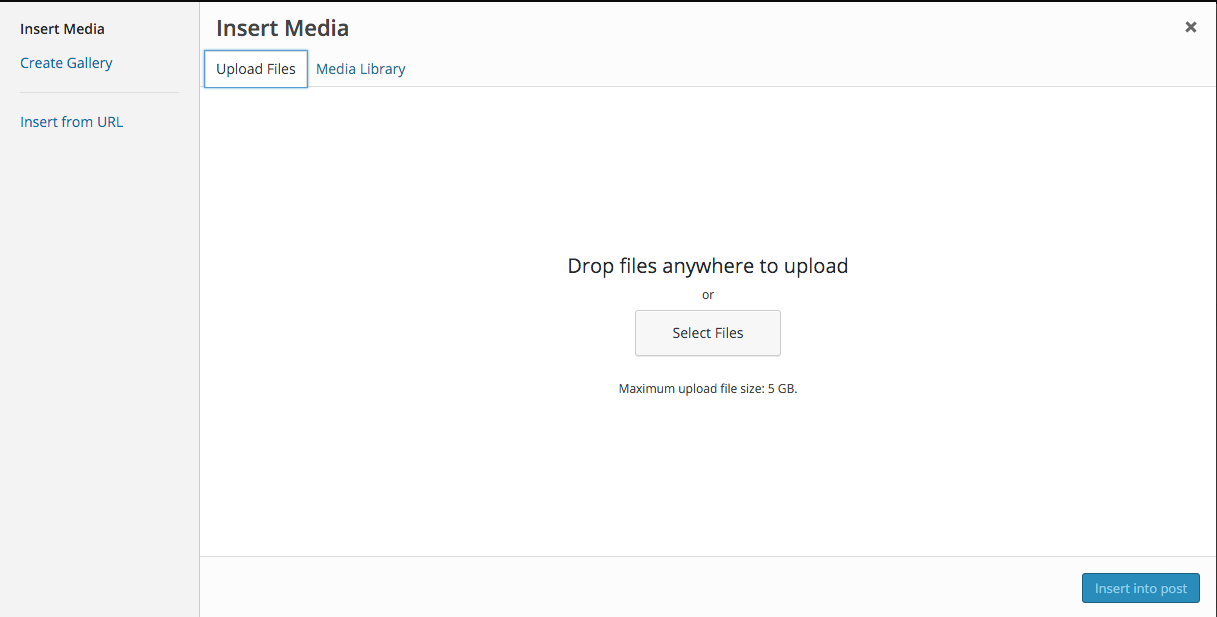
- Simply drag and drop your files into the box that appears, or click Select Files to choose a file from your computer to upload.
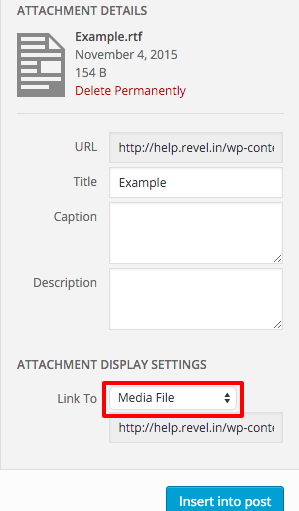
- Once the file has finished uploading, make sure to select Media File from the Attachment Display Settings drop down menu. This ensures that text added to your post will actually link to the file you have just uploaded
- Click the Insert into post button.

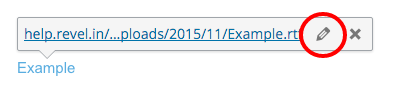
- You should now have a working download link to the file in your new post or page. To edit the details of this link, click the pencil icon after you’ve clicked on the link in the editor.
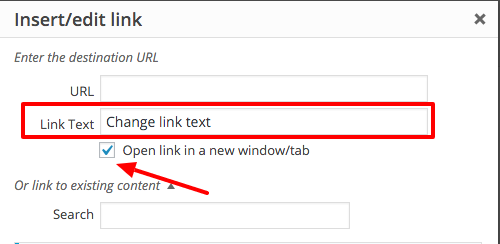
- In the dialog that pops up, you can change the text that displays to download the document, and change whether or not it opens in a new window when clicked. As a general rule, any document or external link should open in a new window so that you don’t direct your user away from the page they’re on.