
Topics Covered for Managing Forms
1. Creating Forms
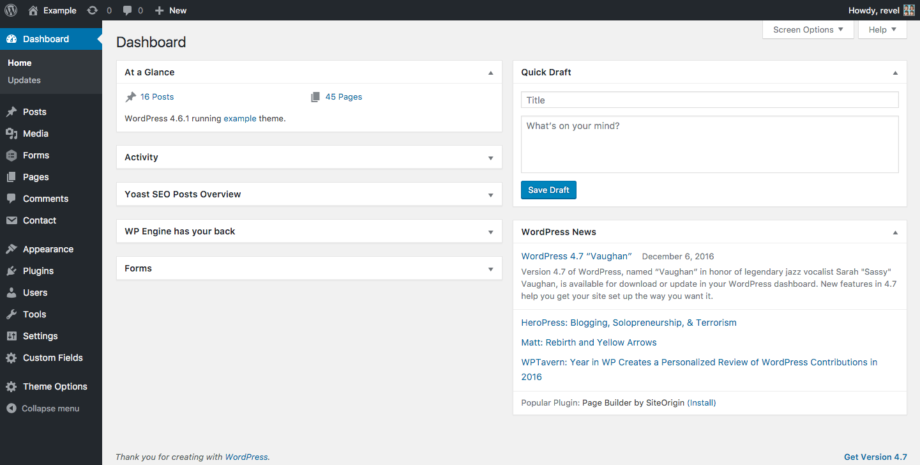
Locate Forms in the left-hand sidebar and click on it.
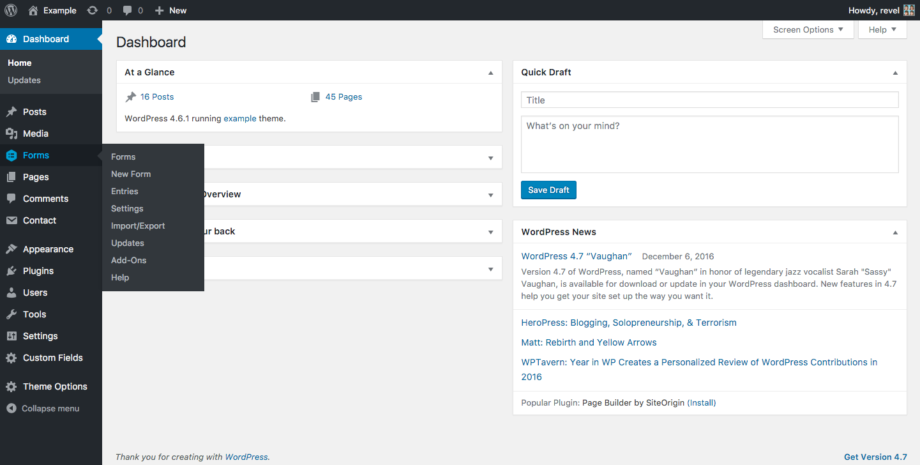
From here you will see All Forms previously added.
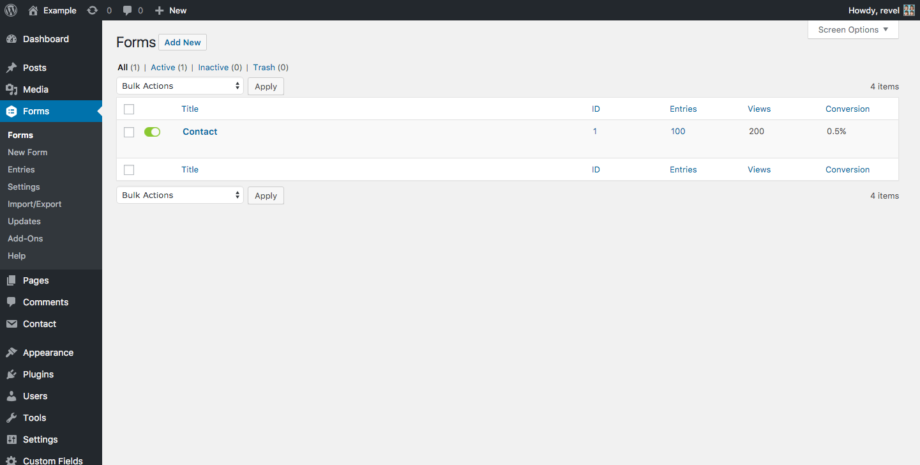
Locate Add New and click on this button. Enter the information for the New Form.
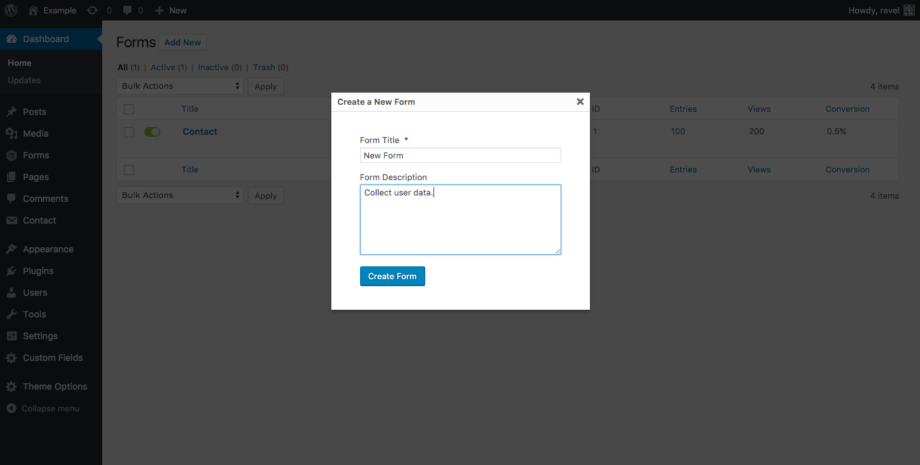
Clicking on Create Form brings you to the Edit Form page.
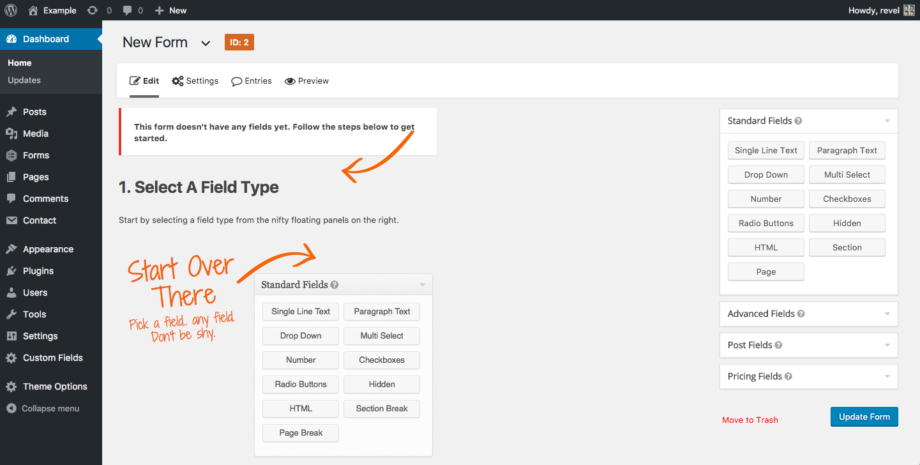
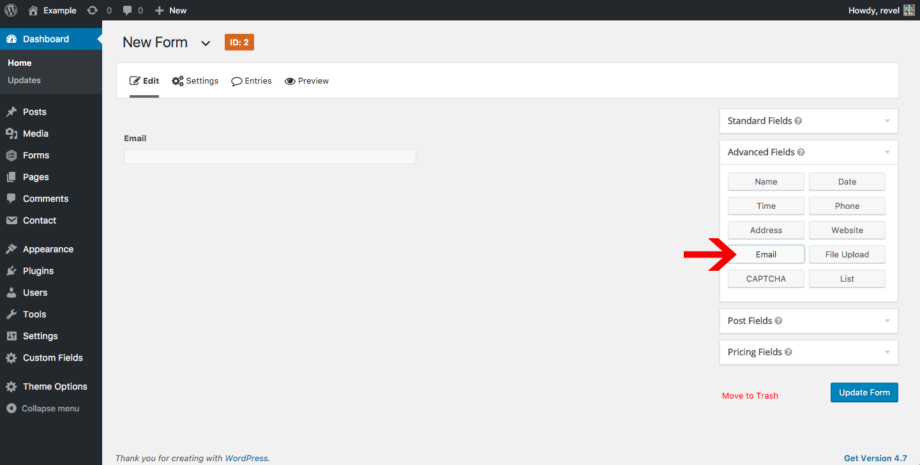
To add a field click on the Type of Field you would like. In this example we are adding an Email field.
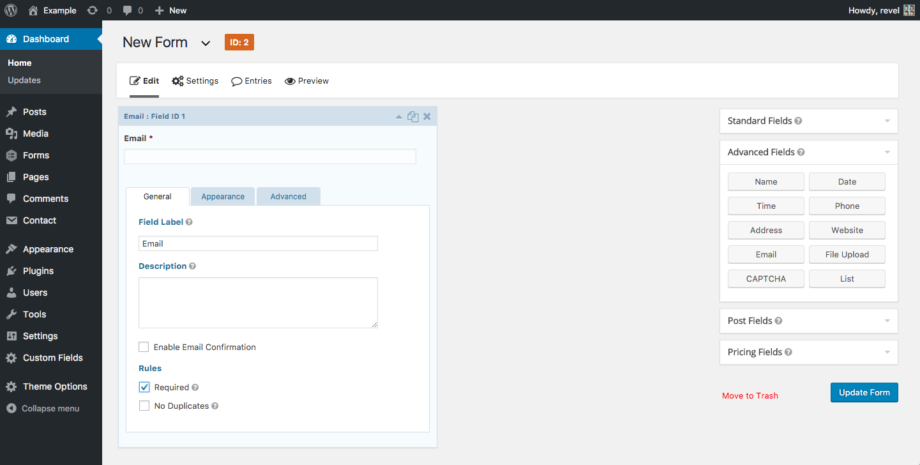
Move your mouse cursor over the Field and click to view more Options. Here you can set Rules for the input field and update the Label or Description. Different fields allow for different options.
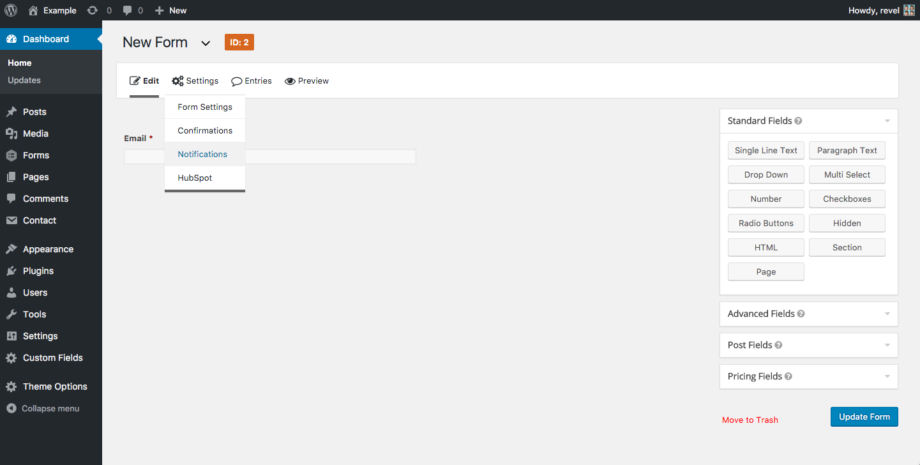
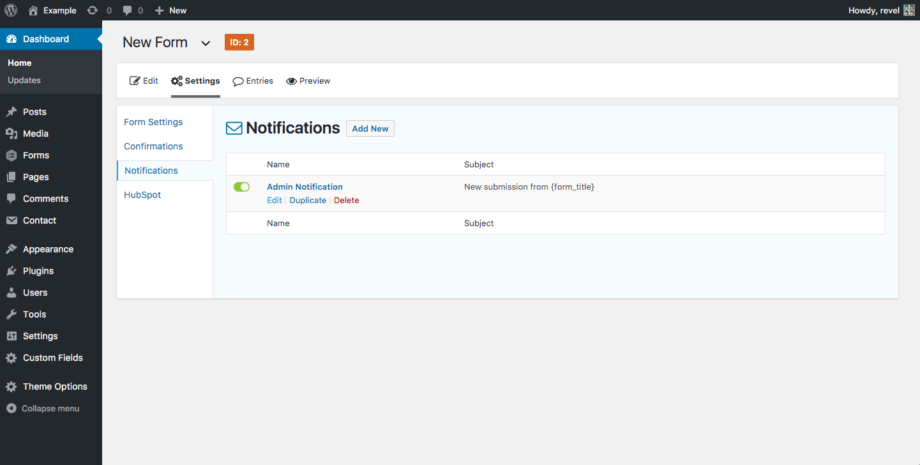
Each form has individual Settings available, the most important is the Notifications. These are the form results that get mailed to you when a User submits a Form.
By Default a form will be submitted to the Admin email of the website.
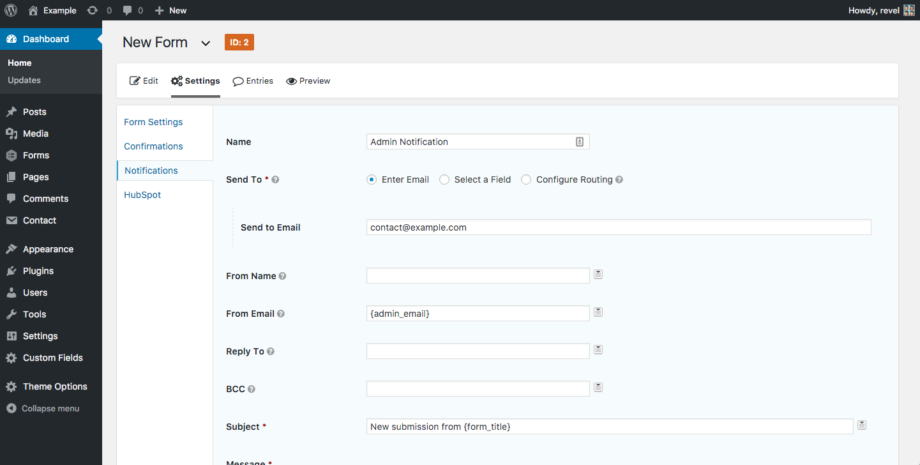
Update the Send to Email field to whichever email you wish to receive updates.
2. Adding a Form to a Page/Post
Locate Pages in the left-hand sidebar and click on it.
Select the Page you wish to Add a Form to.
Find the area on the page where the form will go and Insert the Form.
Note: You can keep the default options here, or make changes. The AJAX option means that the form will not go to a new page after submission.